Reel Motion Graphics with Claude Code & Remotion (Opus 5.5)
Pawan Joshee··7 min read
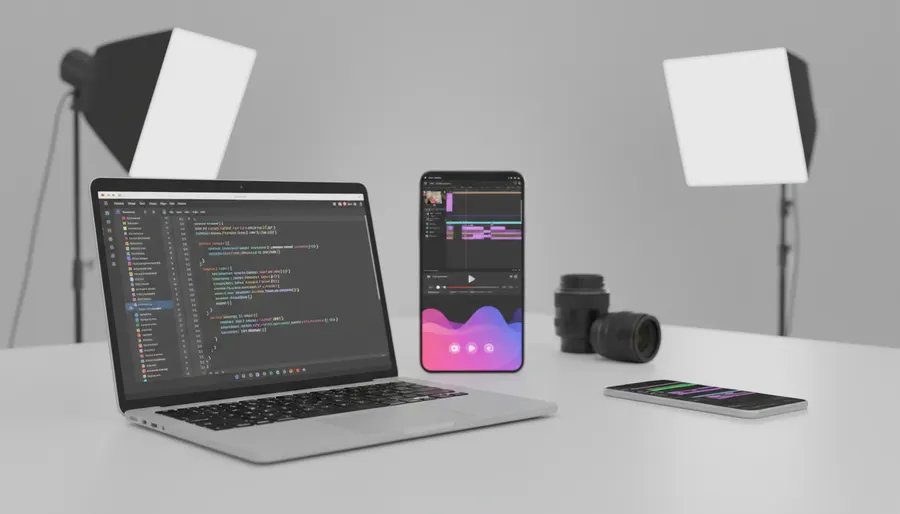
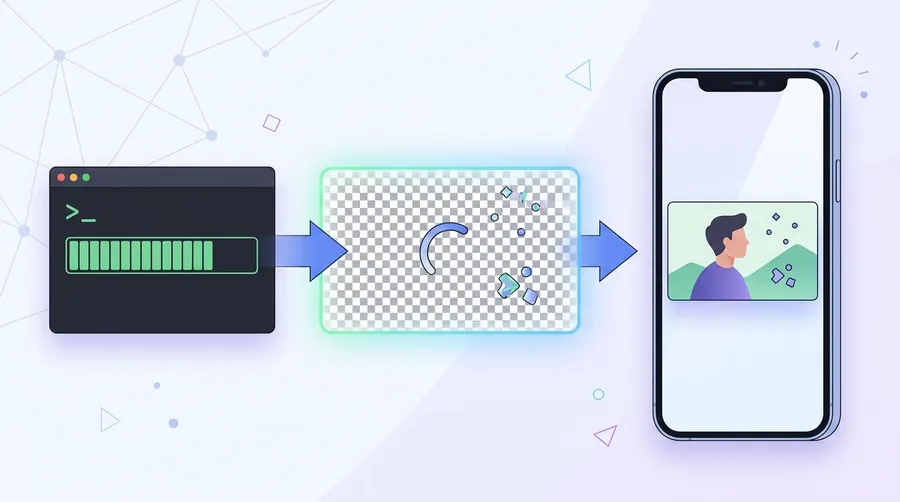
If you want to add customized, high-quality motion graphics like lower-thirds, kinetic text, zoom punch-ins, and progress bars to your Instagram Reels, combining Remotion with Anthropic's Claude Code is the ultimate developer-style workflow. Instead of dealing with heavy timeline-based video editing software, you can write React code that renders frame-by-frame into high-quality transparent video files. These overlays can then be composited onto your Reels in mobile or desktop video editors like CapCut, Premiere, or VN Editor.
This tutorial will guide you through the entire process from installing Node.js, setting up a blank Remotion project, using Claude Code (powered by the highly capable Claude Opus 5.5 model) to write your custom graphics using natural language prompts, rendering transparent WebM/ProRes files, and compositing them over your footage. By the end of this guide, you will have a fast, automated way to generate professional overlays for your short-form content.
Why Use Remotion and Claude Code for Reels?
Remotion is a React-based framework that allows you to create videos programmatically using code. Instead of manually animating keyframes in After Effects, you write reusable React components. This means you can easily change colors, text, and timing with a few lines of code or by asking an AI assistant to do it for you.
Claude Code is Anthropic's command-line developer agent. Powered by the Claude Opus 5.5 model, it features adaptive thinking to handle complex multi-file coding tasks. It reads your codebase, edits files, and runs terminal commands automatically. By installing the official Remotion skills, you give Claude Code deep knowledge of Remotion's architecture, allowing it to write perfectly timed animations based on simple natural language prompts.
Step 1: Install Node.js and Set Up Your Remotion Project
To get started, ensure you have Node.js (v18 or higher) installed on your computer. Open your terminal and run the following commands to create a blank Remotion project:
npx create-video@latest --yes --blank my-video
cd my-video
Next, install the official Remotion skills so Claude Code understands how to write valid code for the framework:
npx remotion skills add
Start the local development server to preview your creations in real-time:
npm run dev
Step 2: Launching Claude Code
To start generating your motion graphics, open a new terminal window, navigate to your project directory, and launch the Claude Code CLI:
claude
This initializes the terminal-based coding agent. You can now prompt Claude Code to build components, write files, and configure your video project.
Step 3: 6 Copy-Paste Prompts for Claude Code
Here are six highly specific prompts to guide Claude Code in building your Reel's motion graphics package:
Prompt 1: Project Setup
We are building vertical 9:16 motion graphics overlays for Instagram Reels. Configure the project for 1080x1920 resolution, 30 fps, and a default transparent background.
Prompt 2: Slide-in Lower Third
Create a React component inside 'src/components/LowerThird.tsx'. It should be an animated lower-third overlay for a social media handle. It needs a sliding entrance animation from the left, a sleek modern background bar with a gradient (e.g., violet to pink), a profile picture placeholder, and text for the name and handle. Use Remotion's 'spring' or 'interpolate' for a smooth transition.
Prompt 3: Kinetic Text Bounce
Create a kinetic text component in 'src/components/KineticText.tsx'. It should animate three words ("AI", "POWERED", "VIDEO") appearing one after another with a punchy bounce scale effect. Each word should stay on screen for 20 frames, with a scale-up spring animation when it enters.
Prompt 4: Viewfinder Zoom Punch-in
Create a zoom punch-in overlay component in 'src/components/ZoomOverlay.tsx'. It should display a stylish focus-bracket corner graphic (like a camera viewfinder) that quickly scales down and fades out, creating a dynamic 'punch-in' visual indicator for when the speaker makes an important point.
Prompt 5: Dynamic Progress Bar
Create a progress bar component in 'src/components/ProgressBar.tsx'. It should render a thin 8px horizontal line at the very bottom of the 1080x1920 frame. The bar should fill from left to right, reaching 100% width exactly at the last frame of the composition. Use 'useCurrentFrame' and 'useVideoConfig' to calculate the progress percentage.
Prompt 6: Registering Compositions
Update the main entry file (e.g., 'src/Root.tsx' or 'src/index.ts') to register all four compositions: LowerThird, KineticText, ZoomOverlay, and ProgressBar. Ensure each composition has a width of 1080, height of 1920, and transparent background enabled.
Step 4: Understanding the Remotion Code Concept
While Claude Code handles the heavy lifting, it is helpful to understand how Remotion structures animations. Here is a minimal example of a smooth scale-in text overlay using Remotion's built-in physics engine:
import { AbsoluteFill, spring, useCurrentFrame, useVideoConfig } from 'remotion';

export const SimpleOverlay = () => {
  const frame = useCurrentFrame();
  const { fps } = useVideoConfig();

  // 'spring' creates organic, physics-based movement instead of linear transitions
  const scale = spring({ frame, fps, config: { damping: 12 } });

  return (
    <AbsoluteFill style={{ justifyContent: 'center', alignItems: 'center' }}>
      <div style={{ transform: `scale(${scale})`, color: 'white', fontSize: 80, fontWeight: 'bold' }}>
        BOOM!
      </div>
    </AbsoluteFill>
  );
};
Step 5: Rendering Your Graphics with Transparency
To layer these graphics over your real video footage, you must render them with transparency (an alpha channel). Below is a comparison of the rendering options supported by Remotion:
| Format | Codec | Alpha Channel | Compatibility | Best Use Case |
|---|---|---|---|---|
| WebM | VP8 / VP9 | Yes | Chrome, Firefox, VN Editor (Desktop) | Lightweight web-based overlays |
| ProRes | ProRes 4444 | Yes | Premiere Pro, After Effects, DaVinci | Professional desktop editing |
| MP4 | H.264 | No | All players and mobile apps | Final video output (no alpha) |
Use these terminal commands to render your transparent assets:
Render as transparent WebM:
npx remotion render --image-format=png --pixel-format=yuva420p --codec=vp8 LowerThird out/lower-third.webm
Render as transparent ProRes (highest quality for professional editors):
npx remotion render --image-format=png --pixel-format=yuva444p10le --codec=prores --prores-profile=4444 LowerThird out/lower-third.mov
Step 6: Compositing Over Your Reel in CapCut or Premiere
Once rendering is complete, follow these steps to add the graphics to your video:
- Import your raw video footage into your editor (e.g., CapCut, Premiere Pro, or VN Editor).
- Import the rendered transparent WebM or ProRes file as an overlay.
- Place the overlay on a track directly above your main video timeline.
- Since the background is transparent, the motion graphics will seamlessly float over your video.
- Chroma Key Alternative: If your mobile video editor does not support transparent video formats, ask Claude Code to set the background of your Remotion project to bright green (
#00ff00). Render it as a standard MP4, import it, and use the "Chroma Key" or "Green Screen" tool in your editor to remove the green background.
FAQ
Can I run Claude Code and Remotion on my mobile phone?
No, setting up Node.js, compiling React code, and rendering video frames requires a desktop or laptop operating system (Windows, macOS, or Linux). However, once you render the transparent overlay videos on your PC, you can easily transfer them to your phone to use in mobile editing apps like CapCut or VN.
Do I need a paid subscription to use Claude Code?
Yes, Claude Code requires an active Anthropic Console account with API credits or a Claude Pro/Team subscription. Check the official Anthropic pricing page for the latest pricing and credit limits.
Why does my rendered WebM file have a black background instead of transparency?
This happens if your video editor does not support WebM alpha channels or if you have a default CSS background color set in your Remotion code. Ensure you use --pixel-format=yuva420p and --codec=vp8 during render, and remove any background color properties from your outer components.
How can I make my animations faster or slower?
You can adjust the animation speed by modifying the durationInFrames property of your composition or by tweaking the config object in your Remotion spring function. For instance, decreasing the damping value in a spring will make the bounce faster and more energetic.