Google Flow: How to Create Consistent AI Videos with Same Character
Pawan Joshee··8 min read

Creating consistent AI videos where the character, style, and location remain identical across multiple scenes is a major challenge for creators. Google Flow, Google’s advanced AI creative studio powered by Veo 3.1 and Gemini Omni, solves this by offering native workflows specifically designed for filmmaking. By leveraging "Ingredients" (reference images), Scenebuilder, and the Google Flow Agent, you can lock in your character’s face, clothing, and environment across different shots without them shifting or morphing between cuts.
To achieve perfect consistency in Google Flow, you need to use a structured multi-step workflow. This includes generating multi-angle character sheets, registering them as visual references, utilizing the "last frame" trick, and stitching clips inside Scenebuilder. In this guide, we will break down exactly how to use these features step-by-step to produce professional-grade, consistent AI videos on your phone or laptop.
1. Create and Register Your Character "Ingredients"
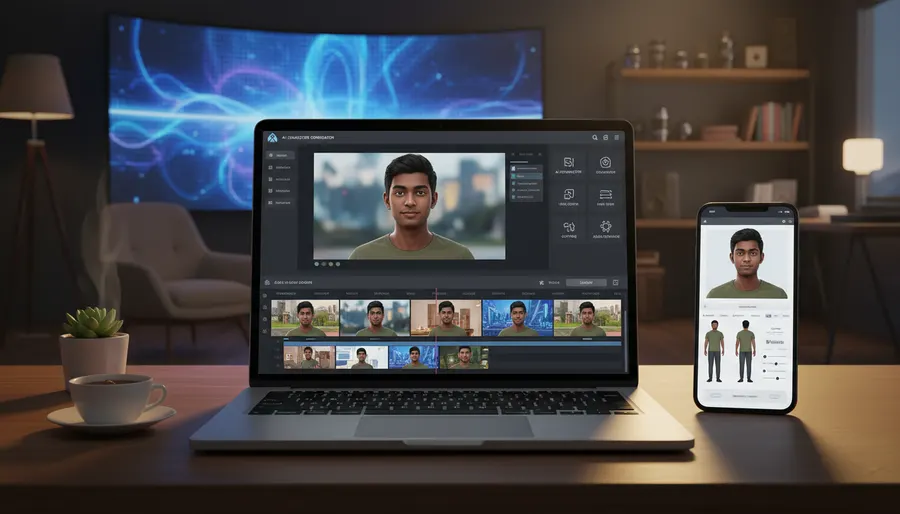
The foundation of character consistency in Google Flow is the "Ingredients" feature. Instead of relying solely on text descriptions, you can upload reference images that the AI model (like Veo 3.1 or Gemini Omni Flash) uses to ground its generations.
To get started, you should generate a multi-angle "Character Sheet." You can do this by toggling on Agent Mode in the prompt box or using a standard image generator like Imagen 3 inside Flow. Use a prompt that generates the same character from front, side, and 3/4 views. Once you have a high-quality sheet, save it.
To register your character in your project:
- Go to your Google Flow project.
- Drag and drop your character sheet image directly into the workspace or click Add under the prompt box to upload it.
- In the prompt box, type
@to open the asset dropdown. Select your uploaded character sheet. It will appear as a tagged ingredient (e.g.,@CharacterName). - Now, when writing your video prompt, explicitly instruct the model to use the tagged asset. For example: "A video of @CharacterName walking through a crowded market".
2. Reusable Character-Sheet Prompt Template
To ensure the AI understands the physical details of your character before you even generate the video, you need a highly detailed, structured text description. You should keep this description block identical and reuse it across all your prompts.
Copy and paste this template to generate your initial character sheet and to paste into your video prompts:
Character Sheet, multi-angle view showing front profile, 3/4 view, and side profile of a 25-year-old Indian man named Aarav. He has short, styled black hair, light stubble, warm brown eyes, and a friendly expression. He is wearing a simple olive green crewneck t-shirt and dark blue jeans. Clean studio lighting, neutral solid gray background, consistent scale and features across all views, cinematic photography style.
When you transition to generating video scenes, keep this description block at the beginning of your prompt, followed by the specific action and environment:
[Insert Reusable Character Description Block here] @Aarav is now sitting in a dimly lit cafe in Mumbai, drinking tea, cinematic lighting, shallow depth of field, 8 seconds.
3. Use Start and End Frames (The Last Frame Technique)
When you want to transition from one shot to another while keeping the character in the exact same position and outfit, the "last frame" technique is highly effective.
- Generate your first video clip (for example, an 8-second clip of your character talking).
- Go to the very end of that generated clip on your timeline.
- Click Save Frame in the top right corner of the video player. This saves the exact final frame as an image asset in your library.
- When generating the next clip, upload this saved image and set it as your Start Frame (under the video generation options).
- In your text prompt, describe the next action. The model will start the new clip from that exact visual state, preventing any sudden jumps or character morphs.
Alternatively, if you are using the Google Flow Agent, you don't even have to manually stitch frames. You can simply use conversational editing. Keep the session open and type:
"Extend the video, pan the camera to the left, and have @Aarav walk towards the door."
Gemini Omni Flash will automatically analyze the context and physics of the existing scene to generate a seamless continuation.
4. Maintain a Fixed Style Line and Aspect Ratio
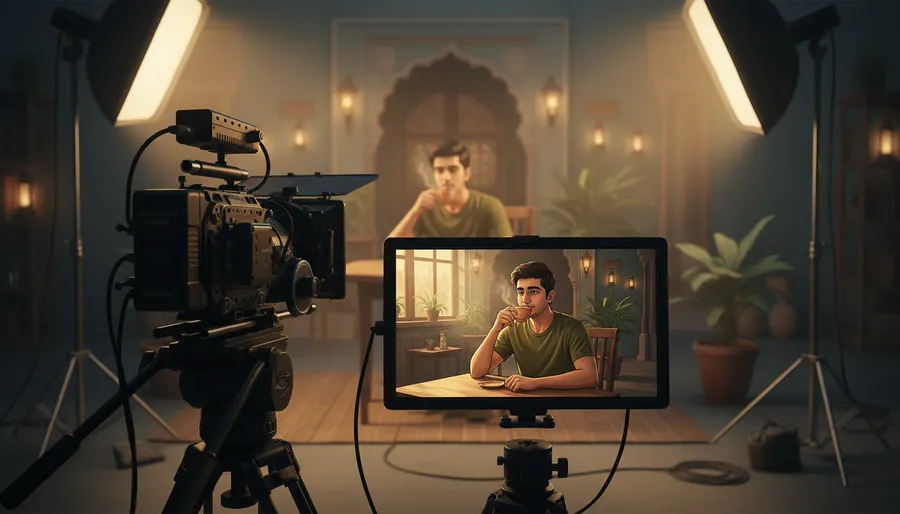
A common mistake beginners make is changing the style description between shots. If your first shot is "cinematic, 35mm lens, warm lighting," your second shot must use the exact same aesthetic keywords.
To lock in your visual style:
- Set a Constant Aspect Ratio: In the Agent settings or video options, choose either
16:9(for landscape/YouTube style) or9:16(for portrait/Instagram Reels style) and keep it locked for the entire project. Mixing aspect ratios forces the AI to crop and re-render details differently. - Use a Style Reference Image: Just like character ingredients, you can upload a high-quality style reference image (e.g., a cinematic color-graded shot of a street) and tag it in your prompt to enforce color palettes and lighting styles.
- Define Camera Movements: Be specific about camera movements (e.g., "slow dolly zoom," "static shot," "pan right") to avoid chaotic, random motion that breaks the cinematic feel.
- Keep Style Keywords Consistent: Use a unified list of style keywords across all prompts in your storyboard to ensure the bakery, cafe, or outdoor background retains the same lighting and mood.
5. Combine and Edit Shots in Scenebuilder
Once you have generated your individual consistent video clips, you need to assemble them into a cohesive story. Google Flow provides a built-in timeline tool called Scenebuilder.
- On the left-hand navigation panel, click on Scenes.
- Right-click on the canvas and select New Scene.
- Click the + (plus) icon at the bottom of the screen to open your asset library.
- Select your generated consistent video clips and add them to the timeline.
- Drag the edges of the clips to trim unnecessary parts or split scenes to keep the pacing tight.
- Preview the combined video with native audio (which is generated contextually by Veo 3.1) before exporting.
6. Google Flow Credits and Models Cheat Sheet
Since video generation consumes credits, it is important to plan your workflow efficiently. Here is a quick breakdown of the credit costs for different models in Google Flow:
| Model / Feature | Credit Cost (Non-Ultra) | Credit Cost (Ultra Subscriber) | Best Used For |
|---|---|---|---|
| Veo 3.1 Lite | 10 credits / gen | 5 credits / gen | Fast drafts, testing character poses |
| Veo 3.1 Fast | 20 credits / gen | 10 credits / gen | Standard social media content, quick iterations |
| Veo 3.1 Quality | 100 credits / gen | 100 credits / gen | Final cinematic renders, high-detail scenes |
| Gemini Omni Flash (720p) | 7 - 15 credits (by length) | 7 - 15 credits (by length) | Multi-turn conversational editing & extensions |
| Omni Video Editing | 40 credits / gen | 40 credits / gen | Modifying specific objects or backgrounds |
Note: All Google Flow users get 50 free credits daily, which do not roll over. Paid plans (Plus at $4.99/mo, Pro at $19.99/mo, and Ultra at $99.99 - $199.99/mo) add extra monthly credits to your account. Check the official Google Flow page for the most up-to-date regional pricing and subscription limits.
FAQ
How can I keep a specific accessory or clothing item consistent across clips?
You can generate a "prop sheet" or "clothing sheet" showing the item from multiple angles. Drag and drop this sheet into your project, tag it as an ingredient using @, and mention it explicitly in your prompt (e.g., "wearing the @GoldNecklace").
Why does Google Flow ignore my character reference when using a start frame?
If you use a start frame where the character is not physically visible (for example, a landscape shot), the Omni model might ignore the tagged character reference and generate a new person. To fix this, either use the Flow Agent to conversationally command the character to "walk into the frame," or briefly edit the start frame in an external tool to paste a rough cutout of your character at the edge before uploading.
Can I generate cinematic videos using only the free daily credits?
Yes, but with limitations. The free tier provides 50 daily credits, which is enough for 5 Veo 3.1 Lite generations or 2 Fast generations per day. However, since a single Veo 3.1 Quality generation costs 100 credits and credits do not roll over, you will need a paid Google AI subscription to access the highest-quality rendering model.
How do I add voice consistency to my character in Google Flow?
Inside the prompt box, click on the model name, select Video, go to Ingredients, and click Add Voices. Select a voice sample (or reference your custom voice) and tag it in your prompt using @Voice: Name. Veo 3.1 will contextually pair the visual dialogue with the chosen voice reference.