Google Flow Me Short Film Kaise Banaye: Idea Se Final Edit Tak
Pawan Joshee··8 min read
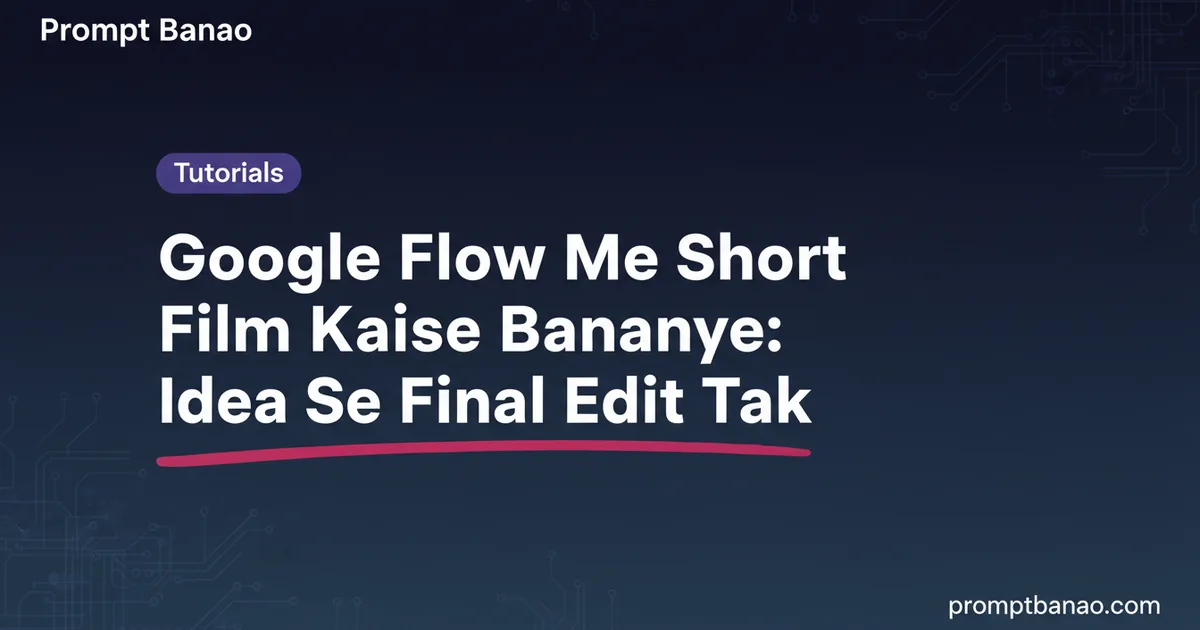
Creating a cinematic short film used to require expensive cameras, a massive crew, and weeks of tedious editing. Today, generative AI tools have completely democratized filmmaking, allowing anyone with a phone or laptop to generate realistic, high-quality video clips directly from text prompts. If you are a creator looking to learn how to make an AI film (ai film kaise banaye), Google Flow is one of the most powerful tools available today. By combining Google's advanced video models like Veo 3.1 with an intuitive scene-building timeline, you can control your narrative from a single workspace.
In this guide, we will walk you through the end-to-end workflow of creating a 45-second cinematic google flow short film. From writing a structured shot list to maintaining character consistency and assembling your final edit with sound in CapCut, you will learn the exact steps to turn your creative ideas into a polished movie. Let's dive into the step-by-step process.
Step 1: Write Your Script and Shot List
To make a successful AI film, you cannot rely on random generations. You need a structured plan. Every second counts, especially when you are working with limited credits. We recommend starting with a 5 to 8 shot sequence that tells a simple, high-impact story. For this tutorial, we will use a story called 'The Last Metro' about a young Indian man named Kabir who finds a mysterious glowing envelope at midnight.
Here is a sample shot-list table designed for a 45-second short film:
| Shot # | Visual Description | Camera Movement | Duration | Model Recommendation |
|---|---|---|---|---|
| 1 | Kabir (25, Indian man, blue jacket) running down metro stairs. | Tracking shot (front) | 8 seconds | Veo 3.1 Fast |
| 2 | Kabir panting on the empty platform, looking around. | Slow pan left | 6 seconds | Veo 3.1 Lite |
| 3 | Close-up of Kabir's face as he notices something on a bench. | Zoom in | 6 seconds | Veo 3.1 Lite |
| 4 | A glowing blue envelope lying on a metallic metro bench. | Dolly in | 6 seconds | Veo 3.1 Fast |
| 5 | Kabir picking up the envelope, looking at it with curiosity. | Orbit up | 8 seconds | Veo 3.1 Fast |
| 6 | Metro doors open, warm golden light spills onto Kabir. | Zoom out | 10 seconds | Gemini Omni Flash |
Step 2: Understand Google Flow's Credit System
Before you start generating, it is crucial to understand how Google Flow manages its credits so you do not run out mid-project. Google Flow operates on a credit-based system:
- Free Tier: Anyone with a Google account gets 50 daily credits free of charge. These credits do not roll over to the next day; they reset based on your first generation of the day.
- Paid Plans: Google AI Plus ($4.99/mo) adds 200 monthly credits; Google AI Pro ($19.99/mo) adds 1,000 monthly credits; Google AI Ultra ($99.99/mo or $199.99/mo) adds 10,000 or 25,000 monthly credits.
- Model Costs:
- Veo 3.1 Lite: 10 credits per generation (5 for Ultra).
- Veo 3.1 Fast: 20 credits per generation (10 for Ultra).
- Veo 3.1 Quality: 100 credits per generation (no Ultra discount).
- Gemini Omni Flash: 15 credits (4s), 20 credits (6s), 25 credits (8s), or 30 credits (10s). Editing an existing video is 40 credits.
Note: Free users may experience generation blocks during peak hours (roughly 2 PM to 5 PM UTC) and cannot access 1080p upscaling without a paid plan.
Step 3: Generate Your Video Clips
Go to labs.google/fx/tools/flow and create a new project. Rename it to 'The Last Metro'. Change your settings to a 16:9 aspect ratio for a cinematic film (or 9:16 for vertical reels). For your first shot, select the Veo 3.1 Fast model. Enter a highly detailed prompt that defines the subject, setting, lighting, and camera movement.
Copy and paste this prompt for Shot 1:
Cinematic shot, a 25-year-old Indian man with short black hair wearing a dark blue jacket running down the stairs of a modern Delhi metro station, neon lights, night, motion blur, camera tracking him from the front, highly realistic, 8k resolution.
Adjust the camera motion settings in the bottom menu. Select 'Dolly In' or 'Tracking' to match your script. Generate the clip and review it. If it matches your vision, save it to your project.
Step 4: Keep Your Characters and Settings Consistent
One of the biggest challenges in AI filmmaking is keeping the character's face and the environment identical across shots. Google Flow provides three powerful features to solve this:
- Ingredients (Reference Images): Before generating Shot 2, upload the best frame of Kabir from Shot 1 as a character reference 'ingredient'. This tells the model to keep the same face and clothing.
- Save Frame: Pause your generated video on a frame you like, hover over it, and click 'Save Frame'. You can use this saved frame as a 'Start Frame' or 'End Frame' for your next shot to guide the visual transition smoothly.
- Jump To: If you need to move your character to a completely different setting, use the 'Jump To' feature in the flow scenebuilder. It transitions the character to a new background while preserving their physical appearance.
Use this prompt for Shot 3 (Kabir's close-up), using the Shot 1 frame as an ingredient:
Cinematic close-up of a 25-year-old Indian man with short black hair, looking down at a bench with a surprised expression, dramatic neon lighting, night, shallow depth of field.
Step 5: Arrange and Extend Shots with Scenebuilder
Once you have generated all 6 clips, open the Scenebuilder tab inside Google Flow. This is your built-in storyboard and timeline editor.
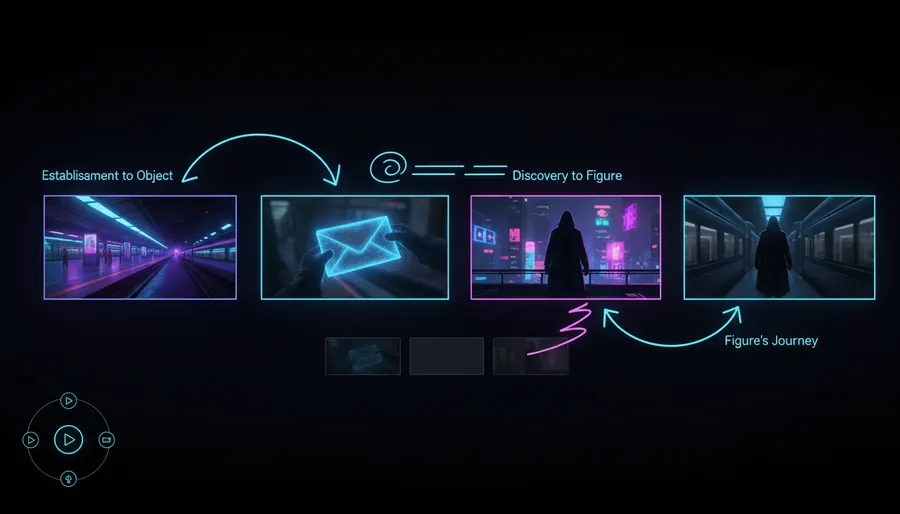
- Drag and Drop: Drag your saved clips from the project panel into the Scenebuilder timeline in chronological order.
- Trimming: Use the yellow handles at the start and end of each clip to trim out any awkward AI movements or glitches.
- Extend Scenes: If a 6-second clip feels too short, select the clip, click the 'Extend' button, and describe what happens next. For example, to extend Shot 5, you can type:
The man slowly opens the envelope, revealing a soft blue glow on his face.
- Preview: Play the entire sequence in Scenebuilder to ensure the visual pacing and character transitions feel natural.
Step 6: Final Editing, Sound, and Export in CapCut
While Scenebuilder is excellent for organizing your timeline, you will need a dedicated editor like CapCut, Premiere Pro, or Remotion to add professional audio and color grading.
- Upscale and Download: In Google Flow, click the gear icon and select '1080p Upscaled' to download your finished scenes (4K upscaling is available on upgraded plans).
- Import to CapCut: Create a new project in CapCut and import your downloaded clips. Arrange them on the timeline.
- Add Sound Effects (SFX): AI videos feel dead without sound. Add ambient sounds (metro train rumbling, footsteps running on concrete, wind blowing).
- Add Music & Voiceover: Add a low, mysterious cinematic background track. You can record a simple Hindi/English voiceover to narrate Kabir's thoughts: 'Mujhe laga tha ye aakhri metro sirf ek safar hai... par is lifafe ne sab badal diya.'
- Color Grading & Export: Apply a subtle cinematic LUT or filter (like 'Cyberpunk' or 'Cold') to match the neon vibe. Export the final video in 1080p or 4K at 24fps for a true movie feel.
FAQ
Is Google Flow completely free to use?
Yes, Google Flow offers a free tier with 50 daily credits, which is enough to experiment with Veo 3.1 Lite and Fast models. However, unused credits do not roll over, and free users may be blocked from generating during peak hours (2 PM to 5 PM UTC). Upscaling to 1080p and using the premium Veo 3.1 Quality model (which costs 100 credits per generation) require a paid Google AI subscription.
How do I keep the same character's face in different shots in Google Flow?
You can maintain face consistency by saving a high-quality frame of your character from an earlier shot using the 'Save Frame' button. Then, add that saved image as an 'Ingredient' (character reference) in the prompt settings of your next shot. You can also use the 'Jump To' feature in Scenebuilder to move the character to a new location while preserving their look.
Why does my video generation fail with "Audio Generation Failed"?
Veo 3.1 generates native audio contextually paired with your video. If the audio generator produces low-quality or glitched sound, Google Flow will fail the generation to protect your experience and automatically refund your credits. If this happens, slightly modify your prompt or try generating again.
What is the difference between "Jump To" and "Extend" in Scenebuilder?
'Extend' is used to continue the action of a single shot (adding 4 to 8 more seconds of continuous movement based on a new prompt). 'Jump To' is used to transition a character or object from one shot to a completely different setting or angle while preserving their visual details, acting as a smart narrative cut.