Auto Hindi Captions for Reels: Whisper + Claude Opus 5.5
Pawan Joshee··8 min read
Generating precise auto captions for Hindi or Hinglish Instagram Reels can be incredibly frustrating. Standard captioning apps often struggle with "Hinglish" slang, phonetic spellings, and correct Devanagari script formatting, leading to embarrassing typos that hurt your viewer retention. To solve this, you can build a highly accurate, professional-grade subtitle pipeline using OpenAI’s Whisper (specifically the super-fast Whisper Large-v3-Turbo) to handle raw audio-to-text transcription, combined with Anthropic’s Claude Opus 5.5 to fix grammar, spelling, and contextual errors.
This step-by-step tutorial will guide you through extracting your reel's audio, transcribing it with word-level timestamps, using Claude Opus 5.5 to clean the transcription into flawless Devanagari or Hinglish, and burning those beautifully styled captions directly into your video using tools like ffmpeg or Remotion. Whether you are a solo creator working on a laptop or an agency scaling up video production, this workflow ensures your Hindi reels stand out with pixel-perfect, highly engaging captions.
Why Hindi and Hinglish Auto Captions Fail on Standard Tools
Most automated captioning tools on mobile phones rely on generic English-centric models. When confronted with Hindi or Hinglish (mixed Hindi and English), these tools fail in two major ways:
- Phonetic Misspellings: A word like "बनाओ" (banao) might get transcribed as "banaw" or "banno," while technical terms like "प्रॉम्प्ट" (prompt) are rendered as broken gibberish.
- Broken Devanagari Conjuncts: Hindi contains complex half-letters (conjuncts) like "क्र" or "ष्ट". Standard rendering engines in generic apps often split these characters, making the text look unprofessional and hard to read.
By combining OpenAI's Whisper with Claude Opus 5.5, you bypass these limitations completely. Whisper excels at phonetic speech recognition, capturing the raw sounds of your voice with incredible accuracy. However, Whisper lacks deep contextual understanding. That is where Claude Opus 5.5 comes in. With its advanced reasoning and editing capabilities, Claude acts as a native Hindi copyeditor, cleaning up phonetic slip-ups, applying proper grammar, and outputting clean Devanagari while preserving your timestamps.
Step 1: Extract Audio and Run Whisper Large-v3-Turbo
To begin, you need to extract the audio from your Reel video file (.mp4) so that the transcription model can process it quickly. You can easily do this on your computer using ffmpeg via the command line:
ffmpeg -i input_reel.mp4 -q:a 0 -map a output_audio.mp3
Once you have the .mp3 file, you can run it through Whisper. We highly recommend using Whisper Large-v3-Turbo. This model, released by OpenAI, trims down the decoder layers from 32 to 4, cutting down parameter size to 809 million. The result is a model that processes audio up to 7x faster than the standard Large-v3 model with almost no drop in accuracy, making it ideal for fast-paced video editing. Alternatively, you can use OpenAI's managed Whisper API, which costs an affordable $0.006 per minute of audio.
Below is a Python script using the faster-whisper library to transcribe your audio locally and output word-level timestamps:
import json
from faster_whisper import WhisperModel

# Load the fast Whisper Large-v3-Turbo model
model_size = 'large-v3-turbo'
model = WhisperModel(model_size, device='cuda', compute_type='float16')

# Transcribe audio with word-level timestamps
segments, info = model.transcribe('output_audio.mp3', beam_size=5, word_timestamps=True)

transcript_data = []
for segment in segments:
    for word in segment.words:
        transcript_data.append({
            'word': word.word.strip(),
            'start': round(word.start, 2),
            'end': round(word.end, 2)
        })

# Save the raw phonetic transcription to a JSON file
with open('raw_transcript.json', 'w', encoding='utf-8') as f:
    json.dump(transcript_data, f, ensure_ascii=False, indent=4)
Step 2: Contextual Correction with Claude Opus 5.5
Whisper's output will contain raw phonetic words and timestamps. It might spell brand names incorrectly or use English letters where you want Devanagari. To fix this, we pass the JSON file to Anthropic's Claude Opus 5.5.
Claude Opus 5.5 is highly cost-effective, priced at just $4 per million input tokens and $20 per million output tokens, making it a budget-friendly option for content creators who process hours of video. It has unmatched reasoning capabilities that allow it to read your entire script, understand the context of your Hinglish sentences, and map them to flawless Devanagari script without altering a single timestamp.
Copy and paste this system prompt into Claude Opus 5.5 along with your raw JSON file:
You are an expert Hindi and Hinglish copyeditor. Your job is to take a raw JSON file containing word-level timestamps from a Whisper transcription and correct the text inside it.

Follow these strict rules:
1. Do NOT modify the 'start' or 'end' timestamps under any circumstances.
2. Correct the 'word' field. Whisper often makes phonetic errors in Hinglish (e.g., transcribing 'banao' as 'banaw' or 'प्रॉम्प्ट' as 'promt').
3. Convert the words into clean, natural Devanagari script (or keep it in clean Hinglish if requested, but Devanagari is preferred for Hindi reels).
4. Ensure correct spelling of technical terms (e.g., AI, Instagram, Reel, Claude, Whisper).
5. Output ONLY the valid corrected JSON array. Do not include any conversational filler, markdown formatting outside the code block, or explanations.

Input JSON:
[YOUR_RAW_JSON_HERE]
Claude will output a clean, beautifully corrected JSON list with perfect Devanagari spellings and intact timestamps.
Step 3: Styling with the Right Devanagari Fonts
When rendering Hindi captions, choosing the right font is non-negotiable. Standard fonts like Arial or Helvetica do not support Devanagari conjuncts properly, resulting in letters overlapping or showing up as blank boxes.
For high-engagement Reels, we recommend downloading the following free Google Fonts in .ttf format:
- Noto Sans Devanagari: A clean, modern, sans-serif font designed specifically for readability on small smartphone screens.
- Hind: A friendly, slightly rounded font that is extremely popular among top Indian creators for its bold, punchy look.
Ensure you install these fonts on your system or reference them in your rendering code to keep your text looking polished and professional.
Step 4: Burning Subtitles into the Video (ffmpeg vs. Remotion)
Now that you have your corrected JSON from Claude, you can convert it into a standard SubRip (.srt) subtitle file. Once you have the .srt file, you need to burn (hardcode) the captions directly into your video so they appear automatically on Instagram without requiring users to turn on closed captions.
For a quick and free command-line method, use ffmpeg. This command applies your custom Devanagari font, sets a bright yellow color, and adds a clean black border for maximum readability:
ffmpeg -i input_reel.mp4 -vf "subtitles=captions.srt:force_style='FontName=Noto Sans Devanagari,FontSize=16,PrimaryColour=&H00FFFF&,OutlineColour=&H000000&,BorderStyle=3'" -c:a copy output_reel.mp4
For professional creators or agencies who want to automate their editing pipeline, Remotion is an excellent React-based alternative. It allows you to build highly dynamic, word-by-word animated captions using CSS transitions and web fonts, giving you CapCut-style animations programmatically.
Here is a quick comparison of the rendering methods:
| Feature | ffmpeg | Remotion | CapCut / Mobile Apps |
|---|---|---|---|
| Automation | Fully automated (Command Line) | Fully automated (React Code) | Manual / Semi-automated |
| Styling Flexibility | Basic styling & positioning | Unlimited (CSS & React animations) | Template-based |
| Processing Speed | Extremely fast | Moderate (requires rendering) | Fast (on-device rendering) |
| Hindi Script Accuracy | High (with proper fonts) | High (with web fonts) | Low (often breaks conjuncts) |
| Cost | Free & Open-source | Free (Self-hosted) | Free / Paid Subscription |
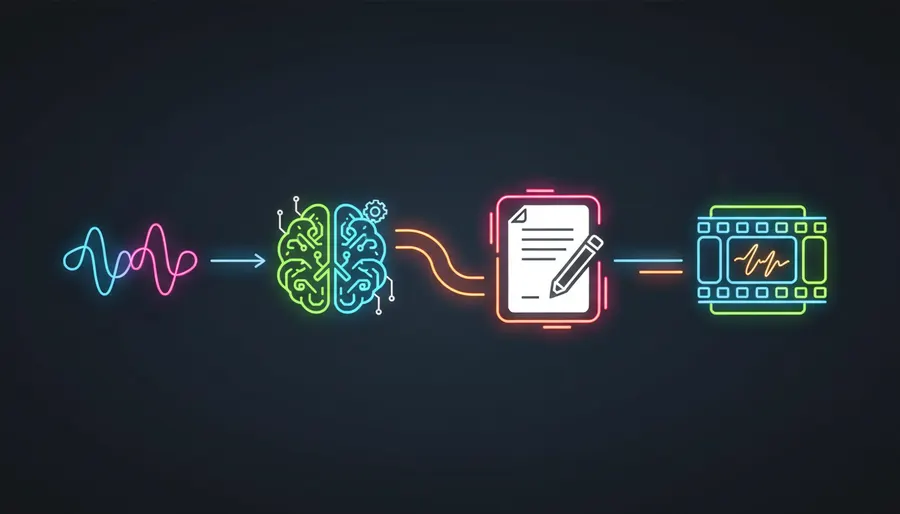
Step 5: The Essential Human Proofread
While the combination of Whisper Large-v3-Turbo and Claude Opus 5.5 achieves over 95% accuracy, AI is still not perfect. It can occasionally misunderstand highly localized slang, brand names, or specific creator catchphrases.
Before you hit "Publish" on Instagram, always perform a quick 2-minute manual review. Play your video with the burned-in captions and double-check that every word matches your spoken audio. This small step ensures your content maintains a highly professional standard and keeps your audience fully engaged.
FAQ
Why does my Devanagari text look broken or show boxes in ffmpeg?
This happens when ffmpeg cannot find your Devanagari font or falls back to a default system font that does not support Hindi characters. Make sure you have downloaded "Noto Sans Devanagari" or "Hind" and specified the exact font name in your force_style parameter.
How much does this Whisper + Claude workflow cost?
The workflow is incredibly budget-friendly. Using OpenAI's managed Whisper API costs just $0.006 per minute. Anthropic's Claude Opus 5.5 costs $4 per million input tokens and $20 per million output tokens, which translates to fractions of a rupee per Reel script.
Can I run this entire workflow on my smartphone?
While Whisper and Claude require computers or API integrations to run efficiently, you can use Python-running apps (like Carnets on iOS) to execute the code. However, for rendering videos with ffmpeg, a laptop or desktop computer is highly recommended for faster processing.
Can I use Claude 3.5 Sonnet instead of Claude Opus 5.5?
Yes! A cheaper Claude model can handle simple steps like transcript cleanup; check the Anthropic pricing page for current rates. However, Claude Opus 5.5 offers the highest reasoning capabilities, making it the superior choice for handling complex Hinglish-to-Devanagari translations and maintaining strict JSON formatting.