Opus 5.5 Se Stylish & Professional Reel Edit Kaise Banaye
Pawan Joshee··8 min read
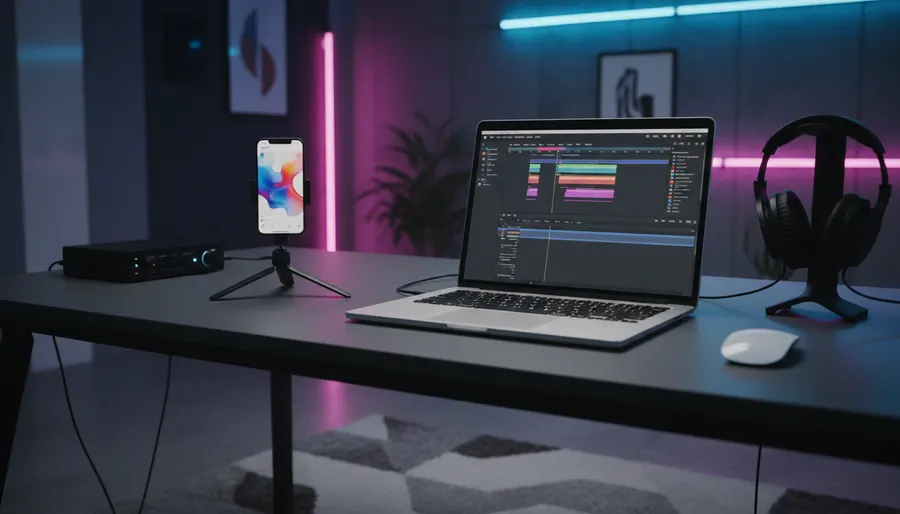
Short-form video platforms like Instagram Reels demand high retention. To capture viewers in 2026, you need a polished, modern editing style featuring tight jump cuts, punchy zooms, dynamic captions, and cinematic color grades. Doing this manually in complex timelines takes hours, but with Anthropic's Claude Opus 5.5, you can act as an executive director and automate the heavy lifting.
Claude Opus 5.5 is Anthropic's flagship model, capable of deep reasoning, vision tasks, and writing highly accurate code. Instead of guessing edit points, you can use Opus 5.5 to write precise scripts, plan dynamic visual sequences, and even generate ready-to-run FFmpeg commands for automated cutting, zooming, and LUT application. In this guide, we will show you how to leverage Opus 5.5 to construct a professional, high-retention reel from scratch.
1. The Anatomy of a High-Retention Reel
To make your reel stand out in a crowded feed, it must satisfy specific visual and pacing requirements. Viewers decide to stay or scroll within the first 1.5 to 2 seconds. Therefore, your "hook" must be visually and audibly arresting. Here is what makes a reel look professional:
- The 2-Second Hook: A bold visual change, a compelling headline, and an immediate problem statement.
- Tight Jump Cuts: Removing pauses, "ums," and "ahs" to keep the pacing brisk.
- Punch-In Zooms: Sudden 1.15x to 1.3x zooms on key phrases to emphasize points.
- Animated Word-by-Word Captions: Keeping eyes glued to the screen with active text coloring.
- Color Grading via LUTs (Look-Up Tables): Giving your smartphone footage a cohesive, film-like color profile.
- Instagram UI Safe Zones: Keeping text away from the top, bottom, and right edges where app icons and captions sit.
2. Hook and Scripting with Claude Opus 5.5
A great edit cannot save a boring script. Opus 5.5 is exceptional at writing natural, engaging scripts that naturally incorporate visual cues. If you are looking for a stylish reel edit ai strategy, the first step is generating a high-retention script. Use the prompt below to generate a script optimized for professional reel editing claude workflows.
System: You are an expert short-form video producer specializing in high-retention Instagram Reels.
Task: Write a 45-second script about [INSERT YOUR TOPIC HERE].

Structure requirements:
1. First 2 seconds: Aggressive hook. Start mid-sentence or with a shocking question. No "Hey guys!" or intros.
2. Pacing: Short sentences (maximum 8 words per sentence).
3. Visual & Audio Cues: Include [Cut], [Zoom In], [Zoom Out], [Sound Effect: Woosh/Pop], and [B-Roll overlay] tags inline.
4. Tone: Conversational, authoritative, and direct. Suitable for an Indian audience.
3. Automating Tight Jump Cuts & Zooms (FFmpeg & Claude)
If you are editing programmatically or want to generate precise cut lists, Claude Opus 5.5 can write FFmpeg commands to slice your footage and apply dynamic zooms. This saves you from dragging clips on a tiny phone screen.
To cut out dead space and keep only the gold, ask Claude to calculate the timestamps and output an FFmpeg command. For example, to stitch together three good segments of a raw video (raw.mp4) and apply a subtle zoom on the second segment, use this prompt:
Act as an FFmpeg expert. I have a raw vertical video (1080x1920, 30fps) named "raw.mp4".
I want to create a tight 15-second edit using these three timestamps:
- Segment 1: 00:02 to 00:07
- Segment 2: 00:12 to 00:17 (I want this segment zoomed in 1.2x to create a punch-in effect)
- Segment 3: 00:22 to 00:27

Please write a single, optimized FFmpeg command to extract these segments, apply the 1.2x zoom on Segment 2, and concatenate them back together into a final vertical video "output.mp4" without losing quality.
Claude Opus 5.5 will output a robust command using filter_complex. Here is an example of what that command looks like:
ffmpeg -i raw.mp4 -filter_complex \
"[0:v]trim=start=2:end=7,setpts=PTS-STARTPTS[v1]; \
 [0:a]atrim=start=2:end=7,asetpts=PTS-STARTPTS[a1]; \
 [0:v]trim=start=12:end=17,setpts=PTS-STARTPTS,scale=1.2*iw:-1,crop=iw/1.2:ih/1.2[v2]; \
 [0:a]atrim=start=12:end=17,asetpts=PTS-STARTPTS[a2]; \
 [0:v]trim=start=22:end=27,setpts=PTS-STARTPTS[v3]; \
 [0:a]atrim=start=22:end=27,asetpts=PTS-STARTPTS[a3]; \
 [v1][a1][v2][a2][v3][a3]concat=n=3:v=1:a=1[v][a]" \
-map "[v]" -map "[a]" -c:v libx264 -crf 18 -pix_fmt yuv420p output.mp4
4. Creating Animated Captions & Overlays (HTML/CSS to Video)
One of the most viral use cases for Claude Opus 5.5 is generating motion graphics by writing code. It writes HTML, Canvas, and CSS animations that can be recorded as high-quality video frames. You can use this to create custom, word-by-word animated captions with a unique brand identity.
Use this prompt to ask Opus 5.5 to write a clean, web-based caption animator to achieve a premium opus 5.5 reel style:
Write a single, self-contained HTML file with embedded CSS and JavaScript that generates a vertical 1080x1920 video overlay.
It must display word-by-word animated captions for this sentence: "This single AI prompt will completely change how you edit your reels."
Design requirements:
- Background: Transparent (or bright green #00FF00 chroma key background).
- Font: Bold, heavy sans-serif (e.g., Impact or Montserrat), centered.
- Animation: Words should pop up one by one. The active word must scale up slightly (1.1x) and turn neon yellow (#FFFF00) with a dark drop shadow, while previous/next words are white or slightly translucent.
- Timing: Set a JavaScript array with timestamps for each word to animate smoothly at 30fps.
You can open the generated HTML file in your browser, record it, or use a headless browser script to render it directly to transparent PNG frames, then overlay it on your video.
5. Consistent Color Grading via FFmpeg and .cube LUTs
Professional creators don't upload raw, washed-out smartphone video. They apply a consistent color grade. You can easily apply a professional .cube Look-Up Table (LUT) to your video using FFmpeg. This ensures your skin tones pop and your video looks uniform across different lighting conditions.
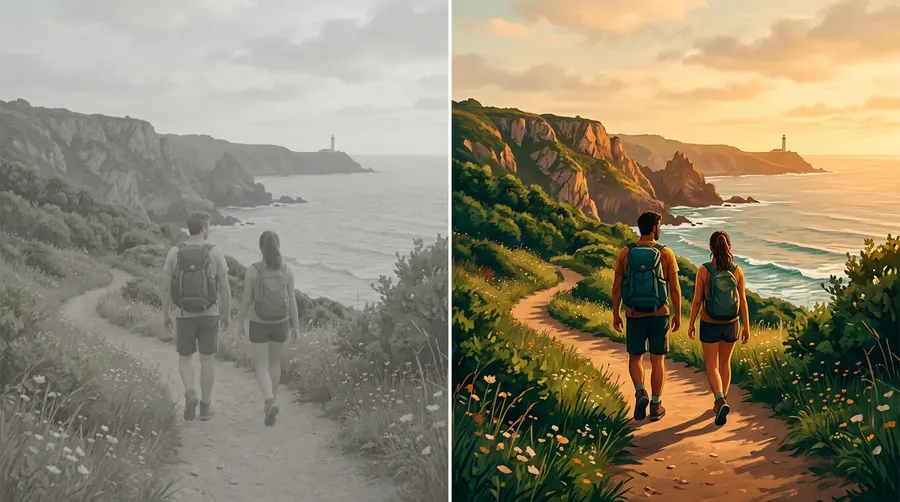
To apply a LUT via FFmpeg, use the lut3d video filter. Here is the clean command to run:
ffmpeg -i input.mp4 -vf "lut3d=my_creative_grade.cube" -c:v libx264 -pix_fmt yuv420p -crf 18 -c:a copy output_graded.mp4
Note: Make sure your .cube file is in the same directory as your input video, or provide the full path to it.
6. Designing for Instagram Safe Zones
When placing captions, stickers, or logos, you must avoid the "danger zones" where Instagram overlays its UI (profile picture, username, audio track info, and action buttons like like/comment/share).
| Aspect Ratio | Total Resolution | Active Safe Zone | Danger Areas |
|---|---|---|---|
| 9:16 (Vertical) | 1080 x 1920 px | Centered 1080 x 1350 px | Top 220 px (Header), Bottom 350 px (UI), Right 150 px (Buttons) |
To ensure your captions are always readable, ask Claude Opus 5.5 to align any visual overlays or text elements strictly within the middle 1080x1350 pixel box.
7. The Ultimate Claude Opus 5.5 Reel Style-Brief Template
To get the absolute best results from Claude, do not just ask for "a cool reel." Feed it a structured style brief. Copy and paste the template below, fill in your details, and watch Opus 5.5 generate a precise editing blueprint.
You are my Pro Video Director running on Claude Opus 5.5. I need a comprehensive editing blueprint for a vertical reel.

[PROJECT DETAILS]
- Topic: [e.g., 3 AI Tools for Designers]
- Target Duration: [e.g., 30 seconds]
- Tone/Vibe: [e.g., Energetic, Tech-focused, Clean]
- Target Audience: Indian Gen-Z and Millennial creators

[VISUAL STYLE PREFERENCES]
- Color Palette: Dark mode background, neon teal accents, white text
- Zoom Style: Rapid punch-ins (1.25x) on key action words
- Caption Style: Word-by-word, center-aligned, safe-zone compliant (within middle 1080x1350)
- Sound Design: Swoosh transitions, mouse-click sound effects on text reveal

Please generate:
1. A highly optimized 30-second script with exact timestamp markers.
2. A sequential shot-by-shot storyboard with editing instructions.
3. The exact FFmpeg commands needed to cut, scale, and apply a creative LUT to the raw clips.
Using this structured approach, you can bridge the gap between AI reasoning and professional-grade video editing, saving hours of manual timeline tweaking.
FAQ
How do I run the FFmpeg commands generated by Claude Opus 5.5?
To run FFmpeg commands, you need to install FFmpeg on your computer. On macOS, you can install it via Terminal using brew install ffmpeg. On Windows, download the executable from the official FFmpeg website and add it to your system's PATH. Once installed, open your Terminal or Command Prompt, navigate to the folder containing your video files, paste the command, and press Enter.
Can Claude Opus 5.5 directly edit my MP4 video files?
No, Claude Opus 5.5 is a text and vision model; it cannot directly output or modify an MP4 file on its own. However, it can write precise scripts, generate style briefs, and output exact code (like FFmpeg commands or HTML canvas animations) that your computer or automated editing tools can execute to produce the final video.
What is the cost of using Claude Opus 5.5 for this?
If you are using the official Anthropic API, Claude Opus 5.5 is highly cost-efficient compared to previous generations. It costs $4 per million input tokens and $20 per million output tokens. For consumer users, it is available as part of the Claude Pro subscription ($20/month) with standard usage limits.
Can I apply these techniques using mobile editing apps?
Absolutely. While the command-line FFmpeg workflows are perfect for laptop users or automated pipelines, you can easily use Claude's generated scripts, safe-zone layouts, and storyboard cues inside popular mobile apps like CapCut, VN Editor, or Instagram's built-in editor. Simply copy the script and visual cues, and apply the zooms and cuts manually.