How to Handle the Google Flow Veo Watermark Legally
Pawan Joshee··8 min read
Are you an Indian creator trying to figure out how to get a google flow watermark free output or perform a veo watermark remove on your videos? The honest, direct answer is that you cannot officially turn it off if you are accessing the tool from India. While Google recently introduced a "Visible watermarking" toggle for users in several Western markets, this setting is hard-locked to "ON" for creators in India, South Korea, and Vietnam due to local regulatory frameworks.
Attempting to use third-party AI watermark removers or shady crop-and-blur tools to hide the AI origin is not only a violation of Google's Terms of Service (ToS) but also risks getting your social media accounts shadowbanned. In this detailed guide, we will explain the dual-watermark mechanism of Google Flow, why India has specific restrictions, and the legal, professional alternatives you can use to design stunning videos around the badge.

Google Flow's Dual-Watermarking System Explained
To understand how watermarks work in Google Flow, you need to understand that Google uses a dual-layer approach to content authenticity. When you generate a video using models like Veo, Omni, or Nano, Google embeds two distinct types of watermarks:
- The Visible Watermark: This is the small, semi-transparent "Veo" text or sparkle badge that appears in the bottom-right corner of your video. It is designed to provide immediate visual disclosure to viewers that the video was generated using artificial intelligence.
- The Invisible Watermark (SynthID): Developed by Google DeepMind, SynthID is a state-of-the-art digital watermarking technology. It embeds an imperceptible digital signature directly into the pixel values of every single frame of the video. It does not affect the visual quality, rendering speed, or resolution of your video, but it is highly resilient. Even if you crop, compress, or heavily edit the video, the SynthID signature remains detectable by specialized scanning tools.
You can verify if a video contains a SynthID watermark by uploading it to the Gemini app and prompting:
Was this video created or altered by Google AI? @SynthID
Because SynthID is baked into the actual pixel mathematics, there is no tool, script, or editor that can cleanly strip it away without completely destroying the video file itself.
The Regional Catch: Why the Toggle Doesn't Work in India
In mid-2026, Google quietly rolled out a "Visible watermarking" toggle inside Google Flow. For creators in eligible countries, this toggle can be found by following these steps:
- Open Google Flow on your browser.
- Click on your Profile Picture in the top-right corner.
- Locate the Visible watermarking toggle in the drop-down menu.
- Switch it off to prevent the visible badge from appearing on future renders.
However, if you are creating content from India, South Korea, or Vietnam, you will notice that this toggle does not help you. Google's official documentation confirms that a visible watermark is applied automatically for users in these regions unless they are on high-end enterprise tiers like the Google One AI Ultra 20x Plan.
This restriction is not a bug; it is a compliance measure. The Indian government's IT Ministry and consumer protection agencies have strict guidelines regarding the disclosure of synthetic media. To prevent the spread of deepfakes and misinformation, Google complies with local laws by forcing visible AI labels on standard accounts in India.
Why You Should Avoid Third-Party Watermark Erasers
If you search online for "flow gemini watermark hataye", you might find tutorials promoting third-party AI watermark removers, browser extensions, or video editing tricks to erase the Veo logo. As a responsible creator, you should avoid these methods for several critical reasons:
- Terms of Service Violations: Actively removing Google's watermarks violates the Google Flow Terms of Service. Google can easily detect account activity and ban your profile, wiping out your credits and saved generations.
- Platform Penalties: Major platforms like YouTube, Instagram, and TikTok use advanced automated systems to scan uploaded videos. If their algorithms detect that a video contains synthetic patterns (like SynthID) but the visible disclosure has been artificially blurred or erased, your account may face severe penalties, including demonetization or a shadowban.
- Legal and Ethical Risks: Under Indian IT guidelines, publishing synthetic content without proper disclosure can lead to legal complications, especially if the content relates to public figures, news, or sensitive topics. Keeping the badge is your shield of compliance.
Legit Alternatives: Smart Framing and Composition
Instead of trying to illegally erase the watermark, professional creators use smart framing and composition techniques. By planning your video aspect ratios and safe zones, you can ensure the watermark never interferes with your storytelling.
1. The Wide-to-Vertical Crop Strategy
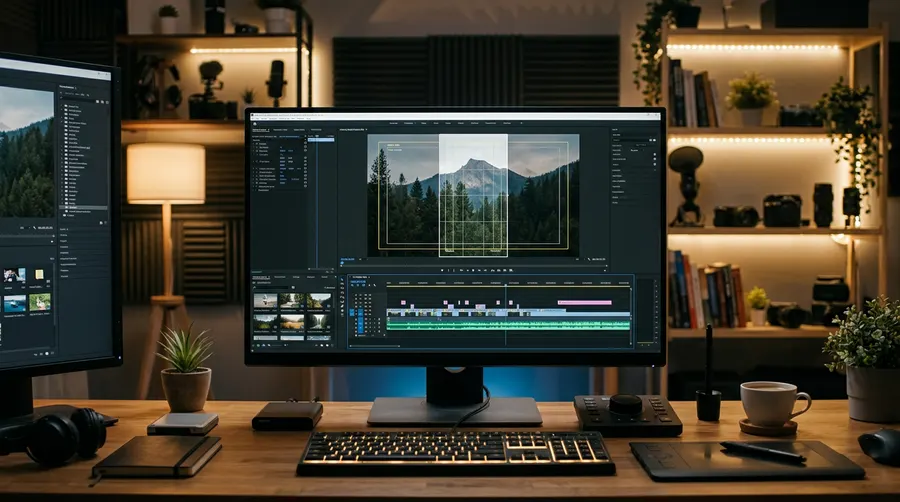
If your goal is to post 9:16 vertical videos (for YouTube Shorts or Instagram Reels), generate your videos in 16:9 widescreen format first. When you bring the 16:9 video into an editor like CapCut or Premiere Pro, you can reframe it to 9:16. Because the "Veo" watermark sits in the far bottom-right corner of the 16:9 frame, it will naturally fall outside the vertical crop area.
Here is a quick comparison of how composition works across different formats:
| Original Aspect Ratio | Target Aspect Ratio | Watermark Position | Action / Strategy |
|---|---|---|---|
| 16:9 (Widescreen) | 16:9 (Widescreen) | Bottom-Right | Leave as is; place captions in the center-bottom. |
| 16:9 (Widescreen) | 9:16 (Vertical) | Outside Crop | Reframe center-cut; watermark is naturally excluded. |
| 1:1 (Square) | 9:16 (Vertical) | Outside Crop | Crop the sides and top; keep the main subject centered. |
If you are comfortable using command-line tools like ffmpeg to automate your video processing, you can use the following command to crop a 16:9 video to a 9:16 vertical format while keeping the center focused:
ffmpeg -i input_16_9.mp4 -vf "crop=ih*9/16:ih:(iw-ow)/2:0" -c:a copy output_9_16.mp4
2. Designing Around the Safe Zones
If you must generate directly in vertical formats, make sure your prompts keep the main action in the "safe zone" (the middle 60% of the screen). This ensures that the watermark at the bottom right, and the platform UI overlays (like the like, comment, and share buttons on Instagram) do not block important visual elements.
Writing Prompts for Better Composition in Flow
To ensure your subjects are perfectly positioned away from the bottom-right corner where the watermark sits, you can use specific framing keywords in your prompts. Here are some copy-paste prompts you can use in Google Flow:
Cinematic wide shot of a futuristic city at sunset, main action centered, detailed architecture, photorealistic, 8k resolution, keeping the bottom-right corner clear of critical details.
Medium close-up shot of a character speaking, centered composition, shallow depth of field, studio lighting, professional color grading, main subject positioned in the upper two-thirds of the frame.
Using terms like "centered composition," "medium close-up," and "rule of thirds" helps the AI model place the essential elements of your scene in areas where they won't clash with the visible badge.
Best Practices for AI Disclosure on Social Media
Embracing the watermark is actually a competitive advantage. It shows your audience that you are transparent, which builds long-term trust. When uploading your Google Flow videos, make sure to use the built-in AI labeling tools provided by the platforms:
On YouTube:
- Go to YouTube Studio and upload your video.
- In the "Details" tab, scroll down to the Altered content section.
- Select Yes to the question: "Do any of the following describe your content? Makes a real person appear to say or do something they didn't do, alters footage of a real event or place, or generates a realistic-looking scene."
- YouTube will automatically apply an "Altered or synthetic content" label to your video description or player.
On Instagram:
- Open Instagram and prepare your Reel.
- On the share screen, scroll down and tap Advanced Settings.
- Toggle on Label as AI info or Made with AI.
By combining Google's built-in "Veo" badge with platform-native disclosures, you ensure 100% compliance with both global platform rules and Indian IT regulations.
FAQ
Can I remove the Veo watermark by upgrading my plan?
For users in India, South Korea, and Vietnam, the visible watermark is applied automatically on standard and pro-tier plans. To officially remove the visible badge, you must be on an enterprise-level subscription like the Google One AI Ultra 20x Plan, and even then, regional regulations may enforce visibility depending on your account setup.
Does the invisible SynthID watermark affect my video quality?
No. SynthID is designed by Google DeepMind to be completely imperceptible to the human eye. It embeds the watermark directly into the mathematical values of the pixels, meaning there is absolutely zero impact on video resolution, frame rate, colors, or rendering speed.
Will YouTube shadowban my video if it has the Veo watermark?
No, YouTube will not shadowban your video simply because it has a "Veo" or Gemini watermark. In fact, platforms prefer visible watermarks as they promote transparency. However, you may face penalties if you attempt to hide or erase the watermark using third-party tools without disclosing that the content is AI-generated.
Can I sell Google Flow videos with watermarks on stock platforms?
Most major stock image and video platforms (like Adobe Stock or Shutterstock) have strict guidelines regarding AI-generated content. While some allow AI submissions, they generally require clean, unwatermarked files and full commercial rights. If your video has a visible "Veo" watermark, it will likely be rejected during the review process. Always check the specific platform's contributor guidelines before submitting.